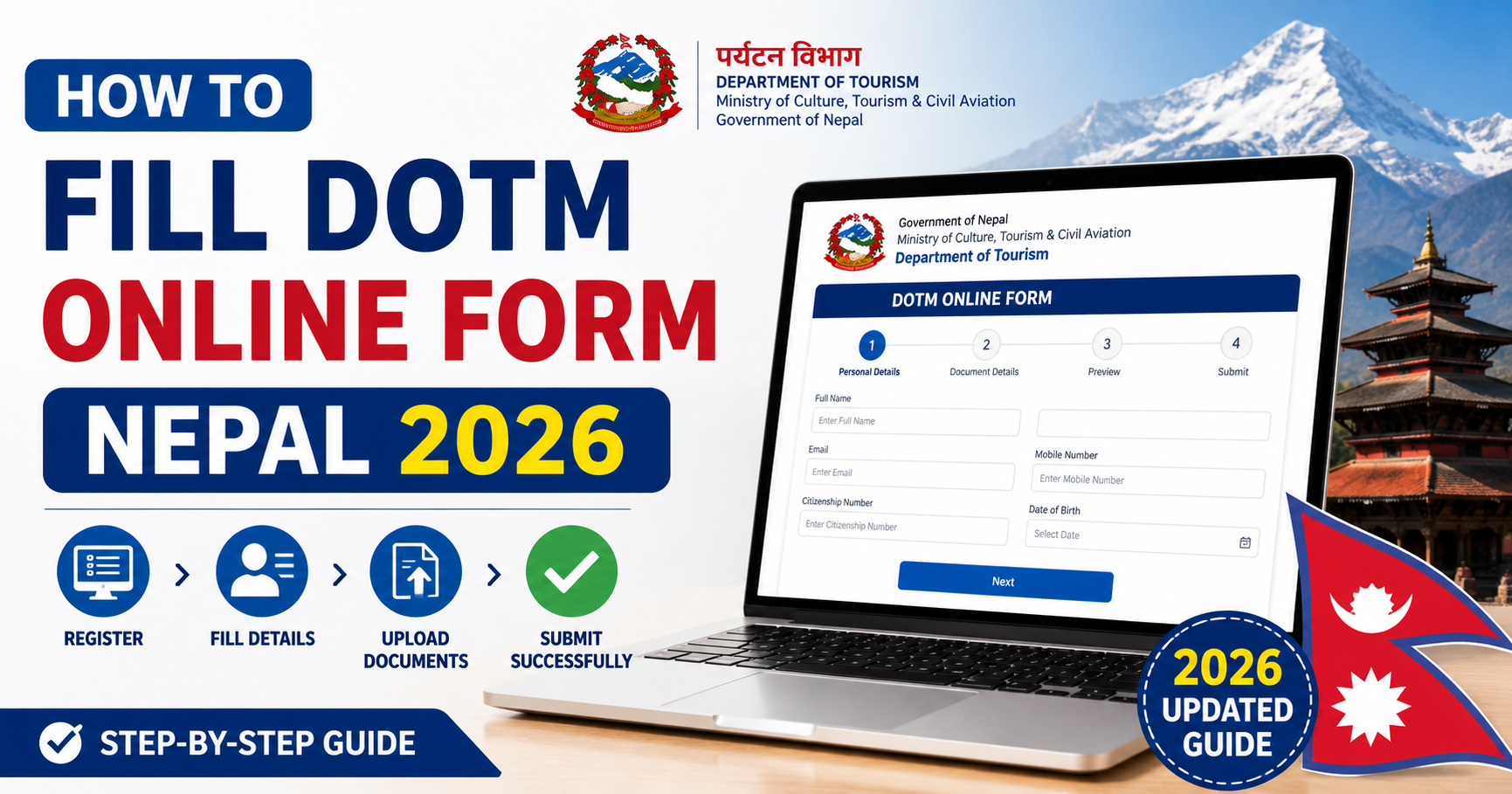
Filling the DOTM online driving license form seems simple — until you make a small mistake that delays your application by weeks. This guide walks you through every field of the form and the most common errors to avoid in 2026.
Before You Start: What You Need Ready
- Your original citizenship certificate (नागरिकता)
- Blood group certificate
- Medical certificate from a registered doctor
- 2 recent passport-size photographs (scanned or high-quality phone photo)
- A working email address and phone number registered in your name
- ConnectIPS, eSewa, Khalti, or internet banking access for payment
Step 1: Account Registration
Go to applydlnew.dotm.gov.np and click New Registration. Enter your mobile number — it must be an active number registered in your name, as OTP verification is required.
Mistake to avoid: Do not use a relative's phone number. OTP verification ties your application to that number. Any mismatch during biometric day can cause rejection.
Step 2: Personal Information Section
Full Name (नाम थर)
Enter your name exactly as written on your citizenship certificate — not your preferred spelling, not your school certificate version. Even minor differences (e.g., "Sharma" vs "Sarma") will cause a document mismatch and trigger manual review.
Date of Birth
Enter your DOB in Bikram Sambat (BS). Do not enter the AD date in the BS field. Cross-check with your citizenship — many people confuse their BS and AD dates.
Citizenship Number
Copy this exactly, including the district code prefix if present (e.g., "01-01-12345"). Do not add spaces or hyphens if the original does not have them.
Permanent Address
Use the address on your citizenship certificate, not your current residence. Choose the district and municipality from the dropdown menus — do not type them manually.
Step 3: License Category Selection
Select the vehicle category you are applying for:
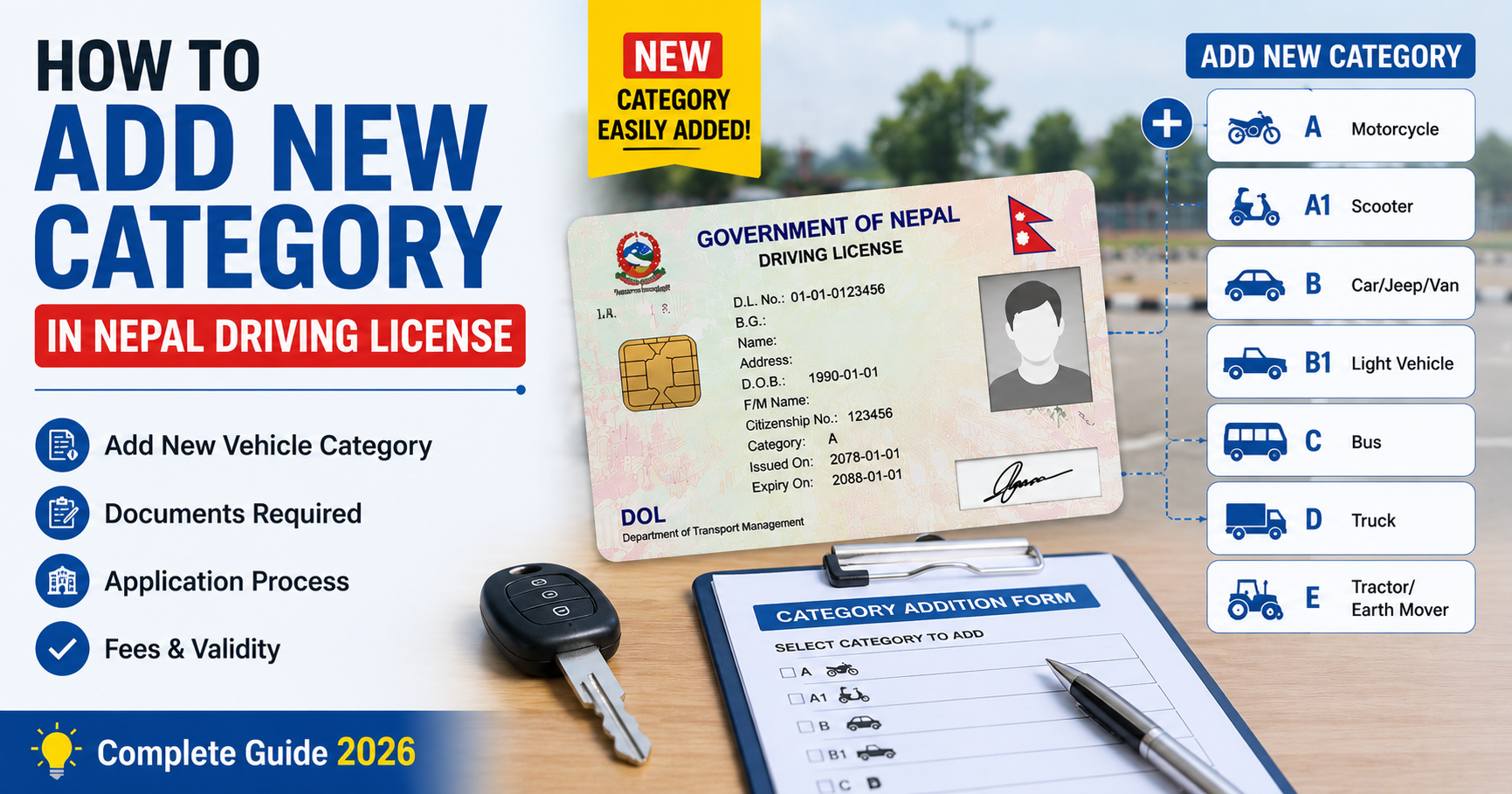
- Category A: Motorcycle / Scooter (minimum age 16)
- Category B: Car, Jeep, Van (minimum age 18)
- Both A + B: Recommended if you plan to drive both — saves time and fees compared to applying separately
Pro tip: Apply for both A and B together. The combined smart card fee (NPR 3,500) is cheaper than paying separately at different times.
Step 4: DOTM Office Selection
Choose the transport office where you want to attend biometrics. You can select any office — it does not have to match your citizenship address district. However, you must collect your physical smart card from whichever office you select.
Step 5: Document Upload
Upload scanned or photographed copies of your documents. File requirements:
| Document | Format | Max Size |
|---|---|---|
| Citizenship (front) | JPEG / PDF | 500 KB |
| Citizenship (back) | JPEG / PDF | 500 KB |
| Photograph | JPEG | 200 KB |
| Medical Certificate | JPEG / PDF | 500 KB |
| Blood Group Certificate | JPEG / PDF | 500 KB |
Mistake to avoid: Do not upload blurry photos. DOTM staff review these manually. A blurry citizenship photo is one of the most common reasons for application rejection.
Step 6: Review Before Submitting
Before clicking Submit, review every field one more time. Once submitted, you cannot edit your personal details. If you spot an error after submission, you must visit DOTM in person to request a correction — which costs additional time and a correction fee.
Step 7: Payment
After form submission, you will be redirected to the payment gateway. Pay the applicable fee. If the payment page times out or fails, do NOT pay again immediately — wait 30 minutes, check your bank account, and verify whether the first payment went through. Duplicate payments require manual refund requests at DOTM.
Common Errors and How to Avoid Them
| Error | Consequence | Prevention |
|---|---|---|
| Name spelling mismatch | Application flagged, manual review delay | Copy-paste from citizenship scan |
| Wrong DOB format (AD vs BS) | Form rejects or wrong license issued | Double-check citizenship for BS DOB |
| Blurry document upload | Rejection during staff review | Scan under good lighting, 300+ DPI |
| File size too large | Upload fails silently | Compress images before upload |
| Double payment on gateway error | Overpayment, manual refund needed | Wait 30 min before retrying |
Frequently Asked Questions
Can I edit my application after submission?
No. The DOTM portal does not allow editing after submission. Any corrections require a physical visit to your chosen transport office.
Can I apply from my mobile phone?
Yes, the DOTM portal works on mobile browsers. However, document upload is easier on a desktop or laptop where you can manage file sizes more easily.
How long does the form take to fill?
With all documents ready, a careful first-time fill takes about 15–20 minutes. Rushing increases the chance of mistakes.
What happens after I submit the form?
After payment is confirmed, you can book your biometric appointment at your chosen DOTM office. Appointment slots open for specific dates — book as early as possible since slots fill quickly, especially in Kathmandu.